Sunday, September 1, 2013

Palladian architecture with Revit constraint modeling

The designs of Palladio have had an important influence on architecture for over four hundred years.


The Villa Rotunda in Vicenza is a masterpiece of Renaissance and Neo-Classical architecture. 


Palladian design came to America and influenced architecture throughout the colonies and the states. 

The southern plantation houses of my native state of Louisiana were inspired by Palladio. It is interesting to study them as a house type. 

In Chalmette, the Beauregard House is one masterpiece.This house near New Orleans is part of a National Historic Park and is open to the public. It is a prototypical design for a plantation house (although not actually associated with a plantation.)


Oak Alley, on the banks of the Mississippi River north of New Orleans is another masterpiece.


Destrehan is another example, older than the other two and not as refined.


A plantation house is a good exercise in the use of constraints to enforce symmetry and proportion.


The first step in a project done with Revit is much like the first step in a project done on paper. Draw the site, using the Massing & Site -> Toposurface tool. Draw a Property Line using the same menu. From the Manage->Project Information, you can describe the client, the location, and, using the Energy Settings parameter, choose a Location Weather and Site value.


For most buildings, the architect knows very early in the process how many stories there are, although the exact height of each story may not be known. Switch to an Elevation view and then use the Home->Level command to draw a Level 1 and Level 2. You can rename the levels and set the heights of the levels after you draw them.


Most real buildings are based on a grid that helps define the structure. A Palladian villa or Louisiana Plantation House typically has a symmetry that is defined by a grid. From a Plan view, use the Home->Grid command to draw lines for the grid.


Symmetry is based on the establishment of centerlines. If you pick the centerline, you will see a dimension line. You can click on the little icon of a dimension line to make the "temporary dimension" into a "permanent dimension. Then, you can set the grid line to have neighboring grid lines that are equally spaced.


You can also draw an aligned dimension line with to locate several reference grid lines, and then set them to be equally spaced by clicking on the EQ icon.


To make the drawing look tidy, you can drag the dimension lines until the leaders and lines are all aligned.


Having draw the grid lines and dimensioned them to control the bay proportions, you can easily draw walls. It is actually best to draw the walls away from the grid lines. Once you have drawn the walls, you can drag them to the dimension line. A lock icon should appear, and you can lock wall to the grid.


 This just shows more locking of walls, this time on the Level 1. Notice in the Properties box to the left that the Top Constraint is set to "Up to level: Level 2". The walls on the Ground floor should have a Top Constraint of "Up to level: Level 1". This command sets the height of the wall to the level. If you later change the level in a section or elevation view, the wall will remain constrained to the level above.
This just shows more locking of walls, this time on the Level 1. Notice in the Properties box to the left that the Top Constraint is set to "Up to level: Level 2". The walls on the Ground floor should have a Top Constraint of "Up to level: Level 1". This command sets the height of the wall to the level. If you later change the level in a section or elevation view, the wall will remain constrained to the level above.


Here a roof is being drawn, but the roof has a "Base Level" of Level 1. It should be Level 2. You can change the parameter and the roof will jump up to the right location.


A second roof can be drawn to provide the double pitch that is characteristic of Louisiana plantation. 
From the View menu, one can draw a section cut line in a plan view. This does not merely draw the symbol for a section cut, but generates the entire section too.

If you want the section to have walls and floors as a solid fill, you can easily change the View Properties by using the Visibility/Graphics Overrides parameter. Set whichever objects are needed to have a solid fill.


Draw the interior walls on each level. It is easiest to sort of sketch them in, deliberately avoiding the grid lines. Once they are drawn and trimmed properly, you can drag them to the grid line and then lock them in place to align with the grid line.


On another level, the process is repeated to lock the walls to the grid lines.


The French windows are drawn using a door family. First you must load the Door family from the library. The family defines the basic un-dimensioned form of a French window. You will add the dimensions later.


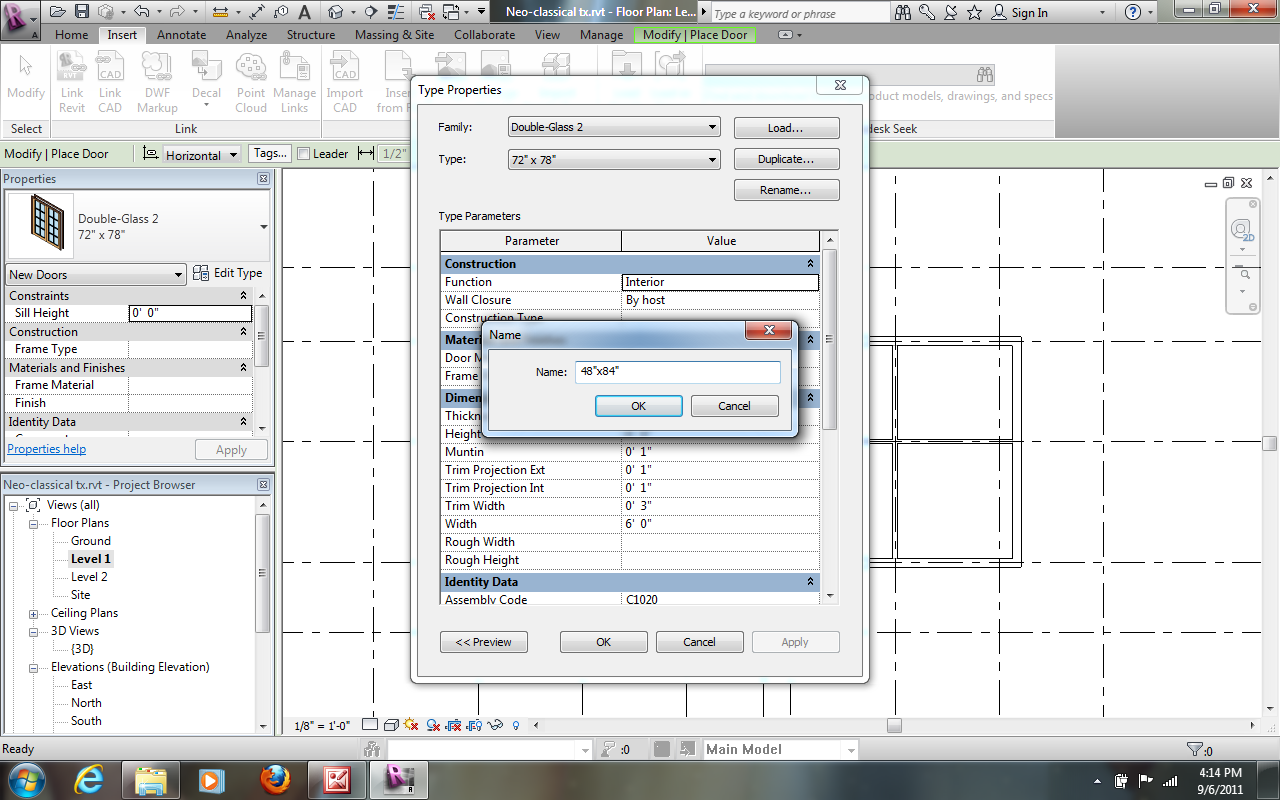
Once the door is loaded, you use the button for Edit Type to define a new door type that you can insert repeatedly. Duplicate the current type and give it an appropriate name.


Having duplicated the type, you can edit the Dimensions, such as the width and height.


You can insert the doors into the walls. Again, the best way is to place them imprecisely. You can then drag them to the right location and use the EQ icon to center them between walls.


If necessary, use the Aligned linear dimension to set the dimensions to be equal.


An entablature can be added with the Beam tool. You can load a timber family and then establish the dimensions of the beam by Edit Type.


From the 3D view, you can see the beam along the outside edge of the roof.


You can edit the "sketch" of the beam to get it aligned with the appropriate part of the roof.


There is a Doric column family in the standard library. Load the family and then add columns around the outside edge. You can use dimensions to lock the columns a distance from the grid lines and align them to grids as centerlines.


Here the dimension is being used to set the end column away from the grid line by 1'2".


The columns by default have a top attachment to the Level 1. You can change the Top Level to the Level 2 and they will stretch to a double height.


The columns also have a Top Offset of -1'4" which places them at the bottom of the beam that represents the entablature. Once you get one right, you can copy them around the building.Or, if you have already placed them, select them all and change their parameters at once. 


This is a good time to "flex" the model by moving the grid lines and levels around. If you have properly locked everything to the lines, the house will reshape. 


The doors seem too short. You can create a new type of door and quickly change all of the doors to the new type.


As you can see, the elements are heavily constrained to the grid lines.


A porch floor was inserted and shadows were turned on. Now the model can be changed in proportion by simply moving the grid lines.


The basic form of the type is complete and fully constrained. Stairs, railings, chimneys, and other elements can be added and locked to appropriate lines. 

Alternative columns could be modeled and quickly substituted. Different door and window families could be collected to allow rapid substitution.

The implications of using constraints and locks to hold a model into a set of relationships is that one can model a building type and then rapidly make instances of the type. The rich formal systems of sameness and variation that make American traditional cities so beautiful can be expressed with BIM tools. 


Circumscribed triangles: helpers for efficient tesselation and Voronoi surfaces

Any triangle can be circumscribed by a circle. The circumcenter is located at the intersection of the perpendicular bisector of the sides of the triangle. Any two sides will work; using all three sides gives the same results as two sides. 

Circumscribed triangles are the basis for a Delaunay triangulation of a surface. The idea behind the Delaunay triangulation is that the triangle are distributed on the surface such that no vertex is inside a circumcircle. This method of triangulation works well when the sample of points on a surface varies depending on the detail and curvature of the surface at various points. The circumcenters in the Delaunay triangulation also define a Voronoi diagram. Voronoi diagrams seem to explain many biological and natural forms and are used in many applications of surface tessellation, and mapping.  

Andrew Kudless has famously made use of Voronoi diagrams and honeycomb structures in this architecture and art. http://matsysdesign.com/

Of course, the location can be calculated with trigonometry and geometry. An example is shown in http://plevit1.blogspot.com/2013/08/3-points-circle-3-points-arch.html, but I am not sure that it works in all situations and the math is pretty intensive. The method described below is largely a graphical method that is very intuitive.By making use of helper surfaces, it is easy to construct the points that drive the geometry. 

Create a new family. Choose the template for Curtain Panel Pattern Based. One could also use Generic Model Adaptive or Generic Model Pattern-Based.  

Click on the blue pattern and change the type to a flat triangle.

The strategy is to create the perpendicular bisectors by defining planes as helper objects to keep the coordinate systems unambiguous. Since the circumcenter can be found from the perpendicular bisector of any two sides, choose two sides of the triangle and use Create form to make two extruded planes.

Draw a reference line on each plane so that it is at the midpoint of the original reference line. Extrude these to make planes. 

These planes bisect the sides of the triangle. Lengthen the planes to make them always long enough to intersect. Where they intersect is the circumcenter. These helper planes do not need to be tall; set them to be of a reasonable size.


Flex your model after every operation. It is easy to draw objects on the wrong plane or work plane.


Since it is important to keep the objects on the plane defined by the triangle, it is also helpful to have a helper surface at that plane. Pick the reference lines of the triangle and create a triangular surface. This will be used extensively as a workplane.


Set the workplane to be the surface.


Next, place a reference point by face on the bottom edge of one of the helper bisectors. It should snap to the edge. Draw a circle with its center point on the reference point. Pick the circle and change its host to be the reference point.


Move the reference point to the circumcenter. The easiest way to do this is to select the point and choose the Host by intersection option. Click the other bisector and the point and the circle should jump to the intersection.


There may be a way to lock the radius of the circle using one of the vertices, but I don’t know how. It is simple to calculate the radius. For a calculation of the diameter of the circumcircle, see:  http://www.mathopenref.com/trianglecircumcircle.html

Of course, the radius is 1/2 the diameter, so
  • r = (d / sin (a))/2

where r is the radius, d is the length of a side of the triangle, and a is the angle of the opposite angle.

Use an angular dimension and a linear dimension to measure the side of the triangle and the angle. Two factors require very careful attention. First, set the workplane to be the helper triangle. The angle and length must be measured on the plane of the triangle. Second, the dimensions must be to the adaptive points and original reference lines of the pattern. This is required to allow the dimensions to be used as Reporting dimensions in equations.

Create Labels for the angle a and the side d and make them into reporting dimensions of the right type. Create another parameter for the radius and attach it to the radius of the circle.

Put in the equation for calculating the radius and you should get the circumcircle. Flex the model to make sure that it works.


Draw model lines for the circle and the triangle using the Pick lines tool. Lock them to the reference lines.


In a separate file, create a conceptual mass family and draw a surface. Load the circumcircle family. Divide the surface and apply the circumcircle to it.
The helper objects are not necessary for simply inspecting the triangles and circles. A refinement of the circumcircle family is to create parameters for controlling whether the helpers are visible or not. Create Yes/No parameters and attach them to the visibility attribute of the helper surfaces, the triangle and the circle. I made these Type parameters so that I could turn on and off all of the panels easily. I also created three types with different visibility settings for the helper objects.


It is easy to turn on or off the visibility of panels. To isolate the helpers of a single panel, apply the hidden type to everything and then change the type of the panel that you want to inspect. 


My intention behind this tool is to develop cooperative tools that help me manually subdivide a surface with an arbitrary mesh and then construct a Voronoi surface on it. The mesh will have a tight sampling when the curvature is sharp or there is a lot of detail, and a coarse sampling when there is little change in surface angle. I want to be able to manipulate the mesh to keep the Voronoi facets reasonably flat to allow for construction from flat materials.  I will experiment with this circumcircle tool to gain experience in crating irregular meshes and see if I can devise a way to gain feedback on the curvature as I apply facets. 

Sunday, August 18, 2013

Fabricating Revit models: laser cutters


Moving Revit surfaces to a laser cutter

Laser cutters are a widely available tool that can make possible models and structures of very complex surfaces. This post runs through steps to cut a triangulated surface that was modeled in Revit. It uses Revit and AutoCAD.

The laser cutter essentially moves a cutting laser along the x and y axes like a knife blade. The intensity and speed of the laser must be adjusted to cut through different materials. Since the laser produces high heat, a material can catch on fire, so the settings must be correct given a material and thickness. At low intensity, the laser can burn grooves, or etch the surface.

Our laser cutter expects a cutting path defined as a coplanar PLINE in AutoCAD. We use AutoCAD layers to designate the intensity of the laser, either “cut” or “score”. The challenge is to move a set of panels modeled in 3D space onto the cutting plane and change them from solids to PLINEs.

Exporting from Revit

Earlier posts describe most of the process, so this one is largely review. A parametric triangulated, panelized surface is the starting point (illustrated in the post on 2012/07/23). The first step is simply to move to a 3D view of the surface in Revit and use the Export command to make a DWG file (Figure 1). The view must be a 3D view to get a 3D model in AutoCAD. I used AutoCAD 2010 format because I have not yet updated AutoCAD to 2013. The process is straightforward.
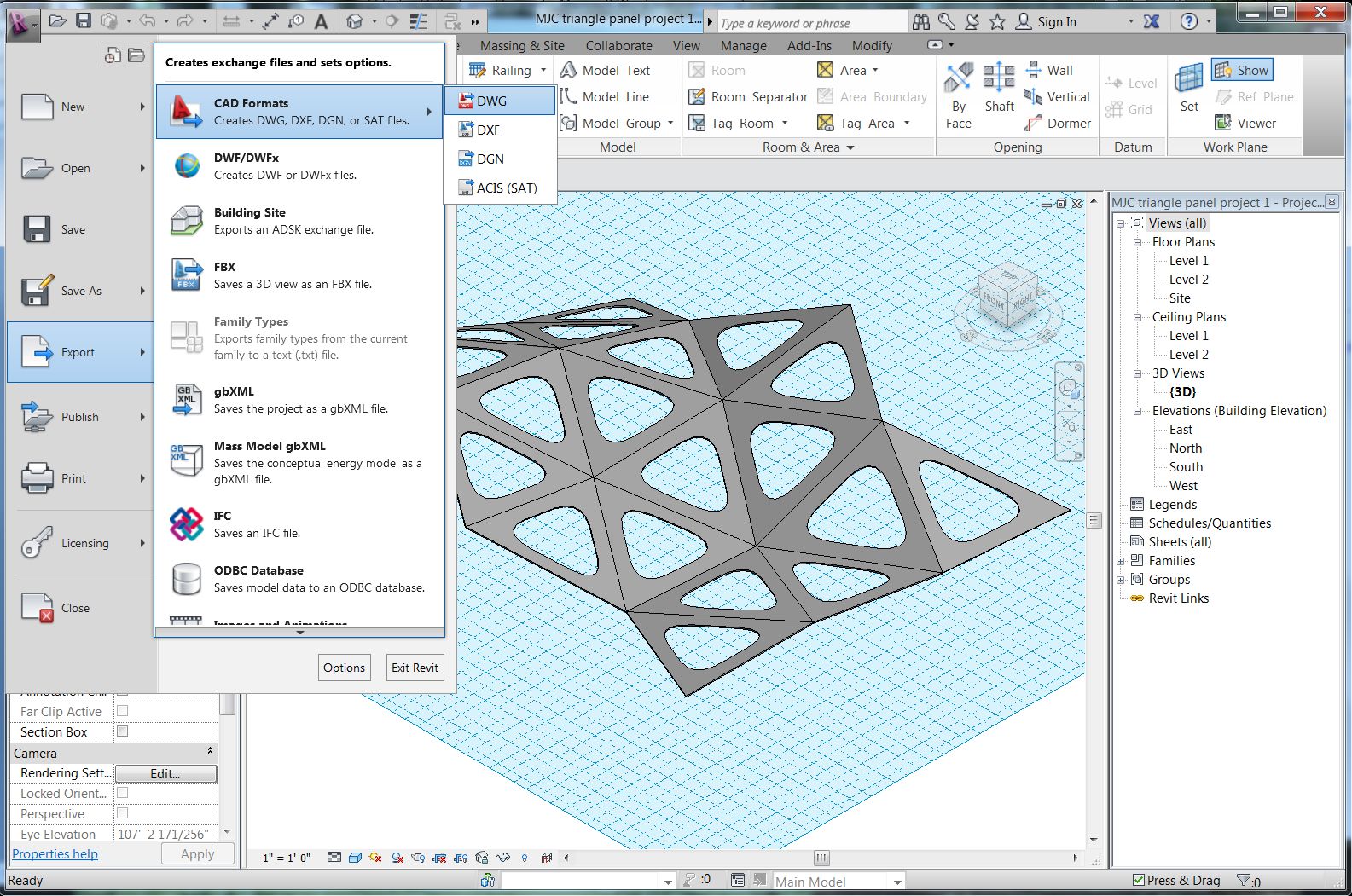
Figure 1.

That’s it for Revit.

Flattening the model in AutoCAD

I opened the file in AutoCAD. It appears in a 3D view that I can spin and inspect. I notice that the panels are in 3D space and are tilted and arranged to create the surface. Also, the panels are themselves 3D extrusions. The following steps convert the panels to 2D objects and drops them onto the cutting plane at z=0. 

The key command is 3DALIGN (Figure 2). It is available from the Modeling tool palette. Or just type in the command. The command will ask for 3 points defining XYZ axes on the element to be moved and then 3 points on the plane to move to, effectively rotating the element in 3D space to align with a new plane.
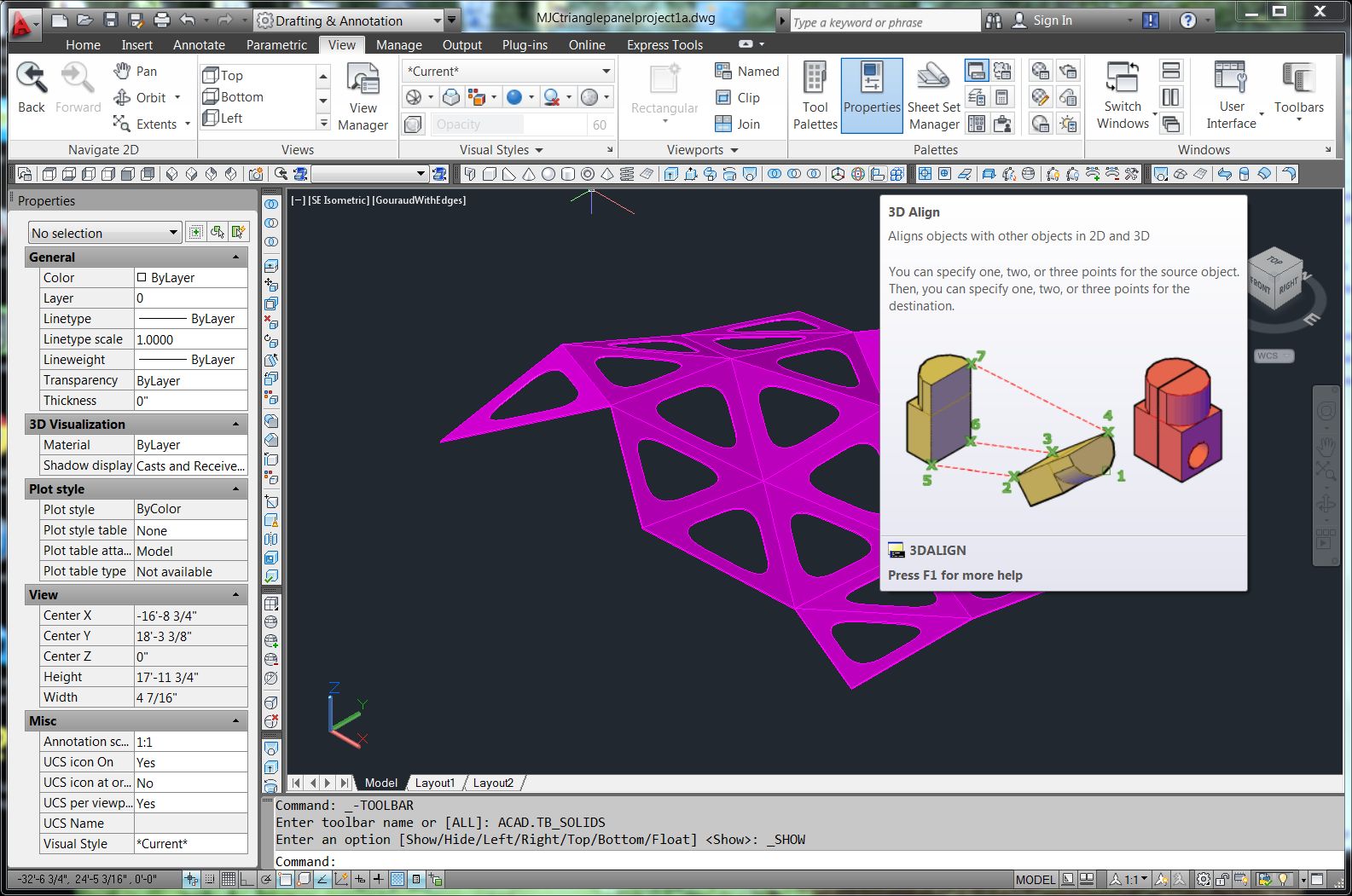
Figure 2.

When using 3D align, it is very important to be precise. The panels are 3D objects with a top face, bottom face, and edge faces. It is important to select the points in the right order to avoid flipping some objects upside down. It is also important to snap exactly to points on the top face. The other faces are unnecessary, so first they need to be deleted.

Converting the model to 2D objects

I will convert them to 2D objects by using the EXPLODE command (Figure 3). Now, each triangle is a POLYFACE MESH (Figure 4). However, it is actually several mesh objects to represent the top surface, the bottom surface, the outside edge surfaces, and inside edge surfaces.
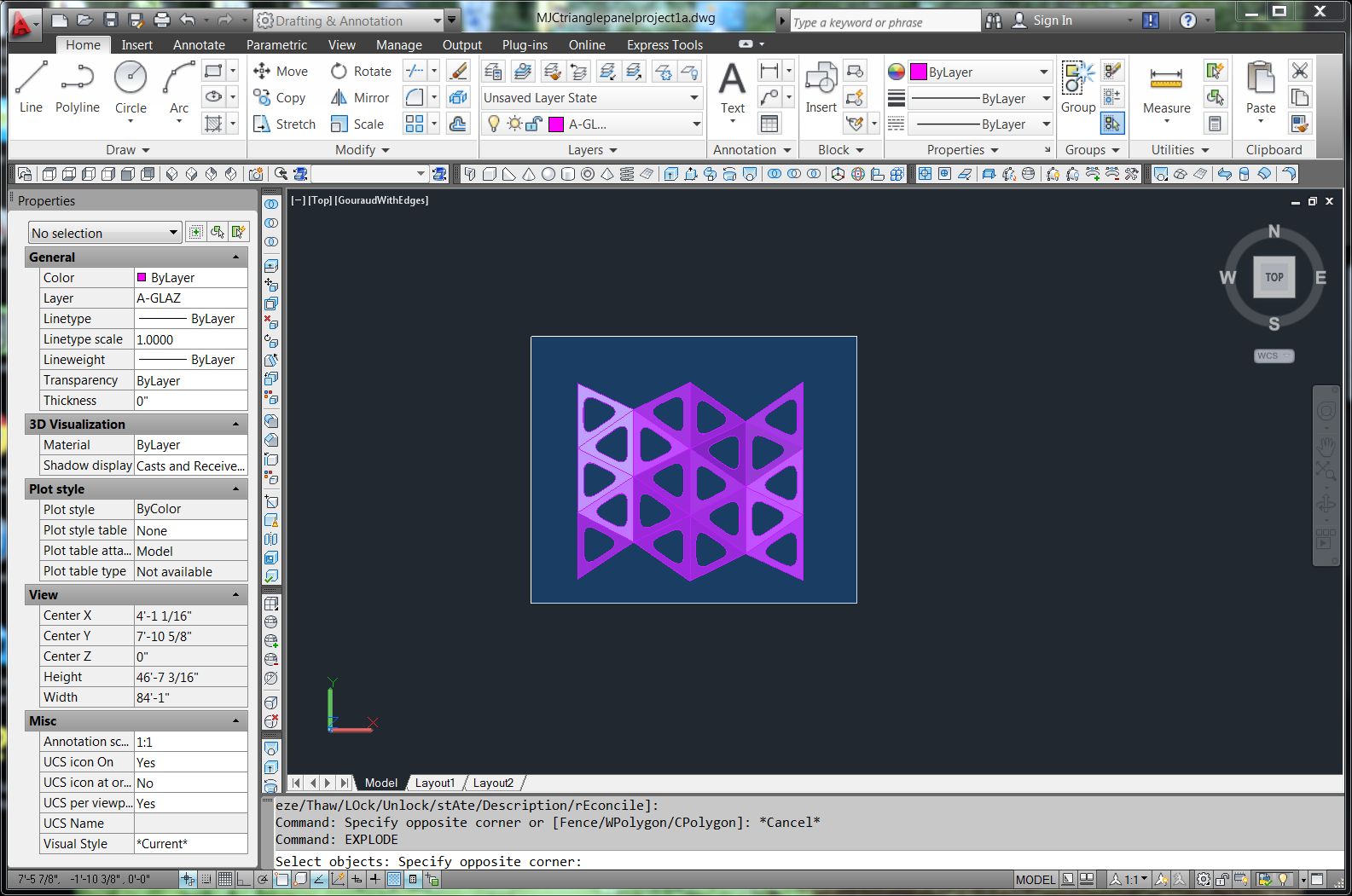
Figure 3.
For laser cutting, I want only the top surface. The top surfaces can be selected easily by clicking on the surface in a place that is unambiguously the top surface. I changed the LAYER of these top surfaces to LAYER 0 and then turned LAYER 0 to hidden (Figure 5). It is then easy to do a window selection and delete the unneeded surfaces, with ERASE W command.
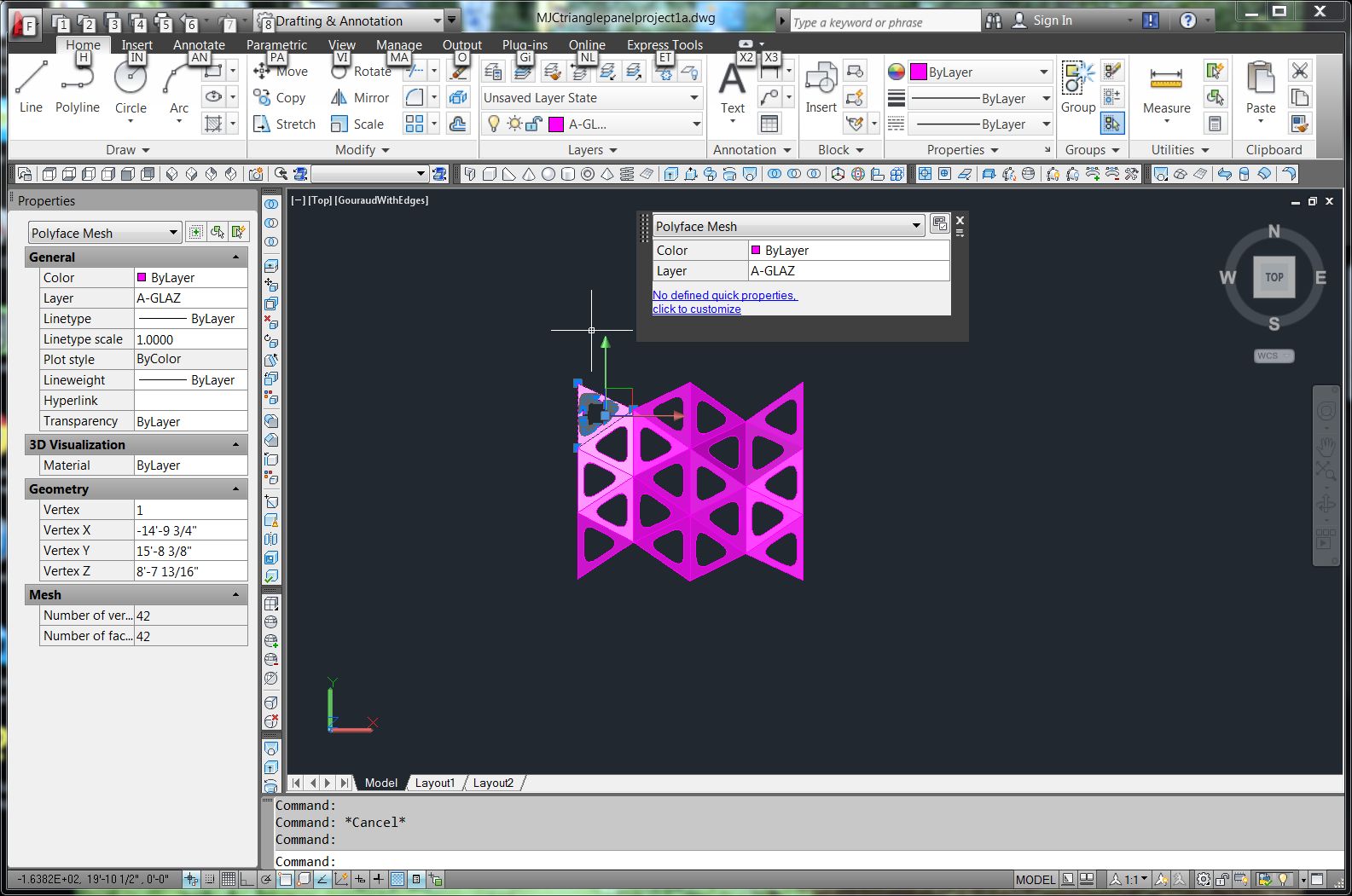
Figure 4.

The top faces can easily be moved back to the A-GLAZ layer.

Arranging the panels on the cutting surface

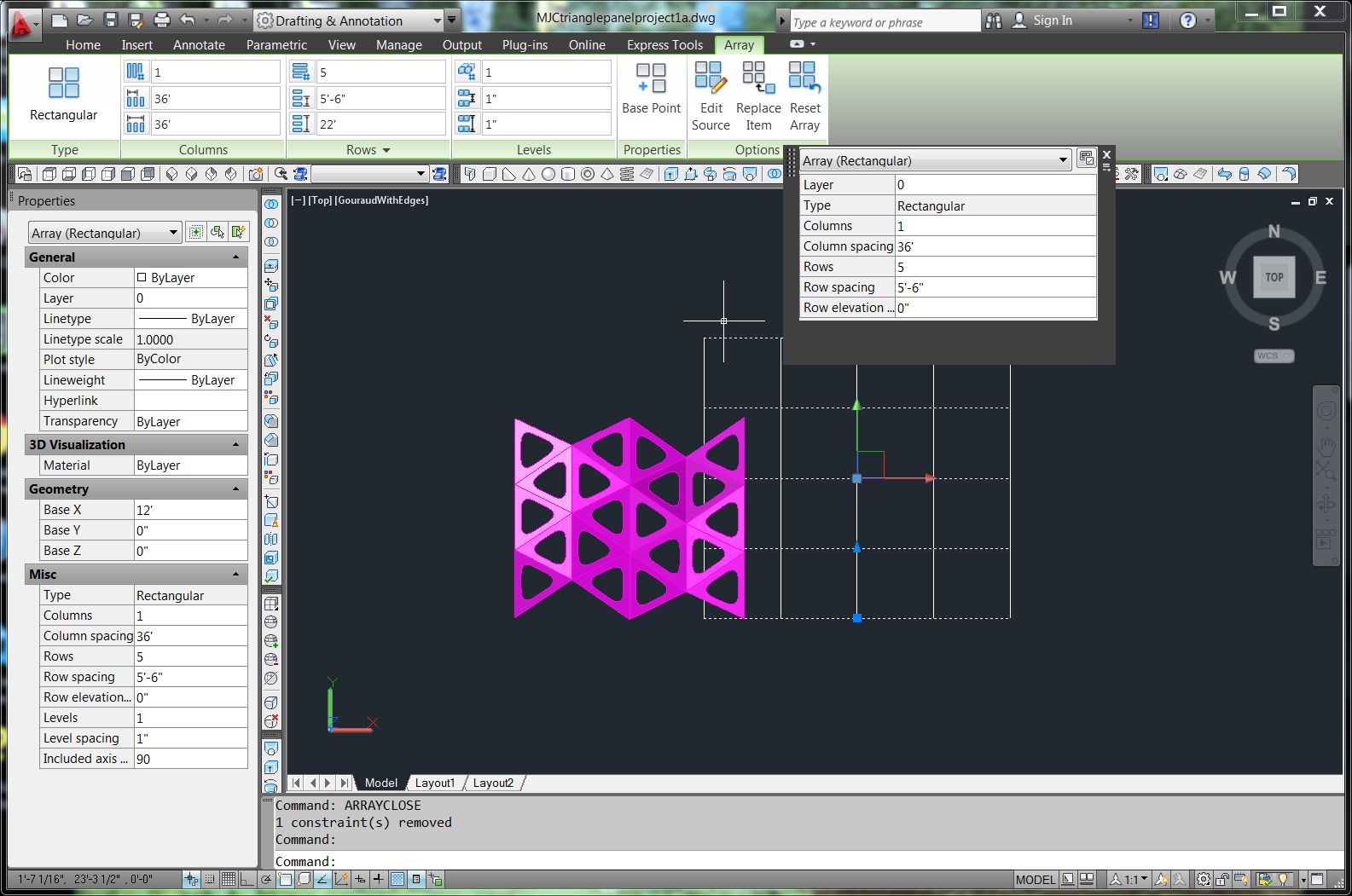
Before aligning the panels on the cutting plane, it is helpful to create a grid on the cutting plane to locate the panels evenly and provide some snap points. The Z=0 plane will serve as my cutting plane. I used the LINE command to make lines from 0,20’ to 0,0 and 0,0 to 25’,0. The COPY command can be used to make a grid of horizontal lines and then the vertical lines (Figure 6). Doubling the vertical lines also gives more points to snap to.
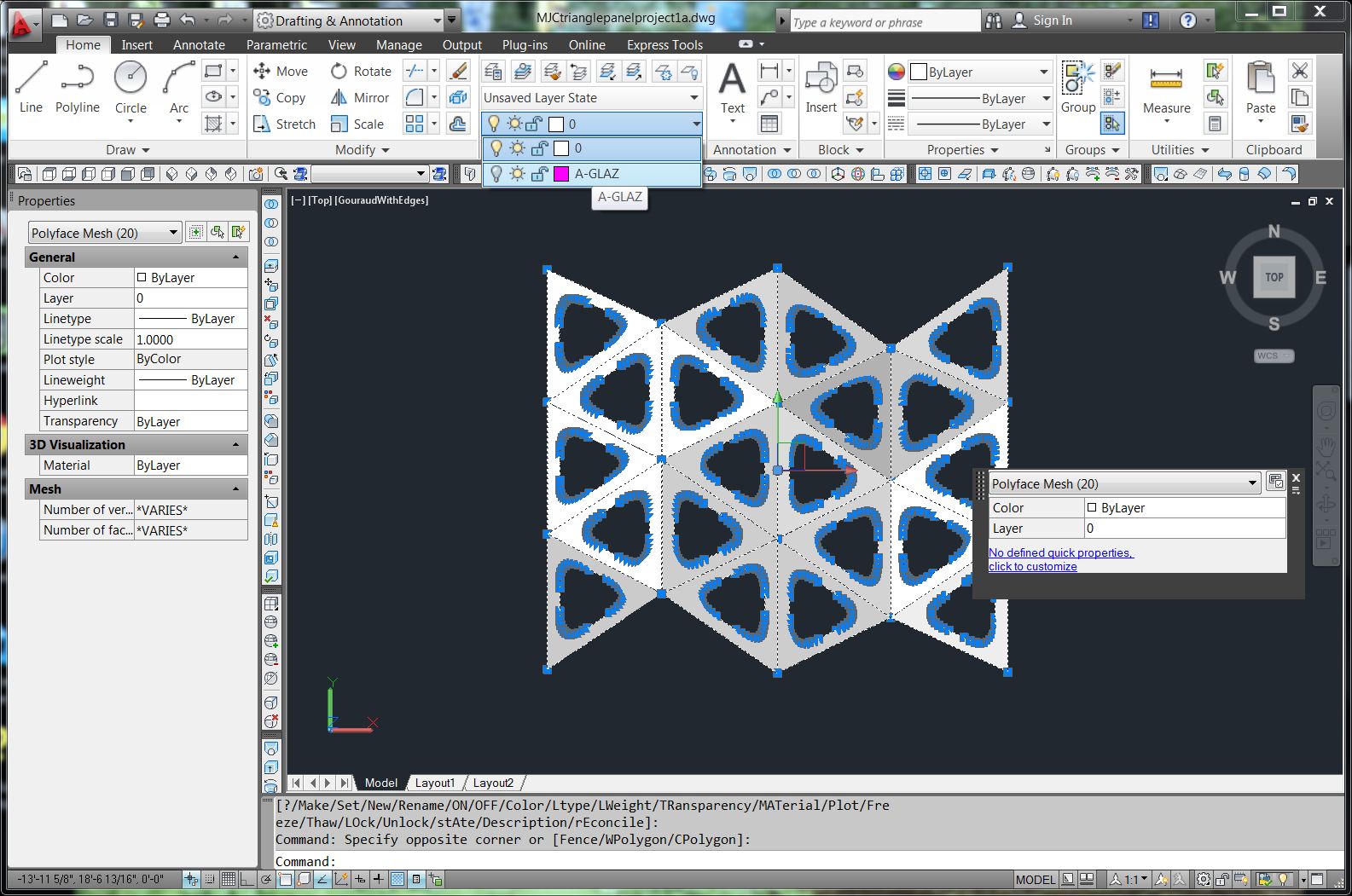
Figure 5.


Figure 6.


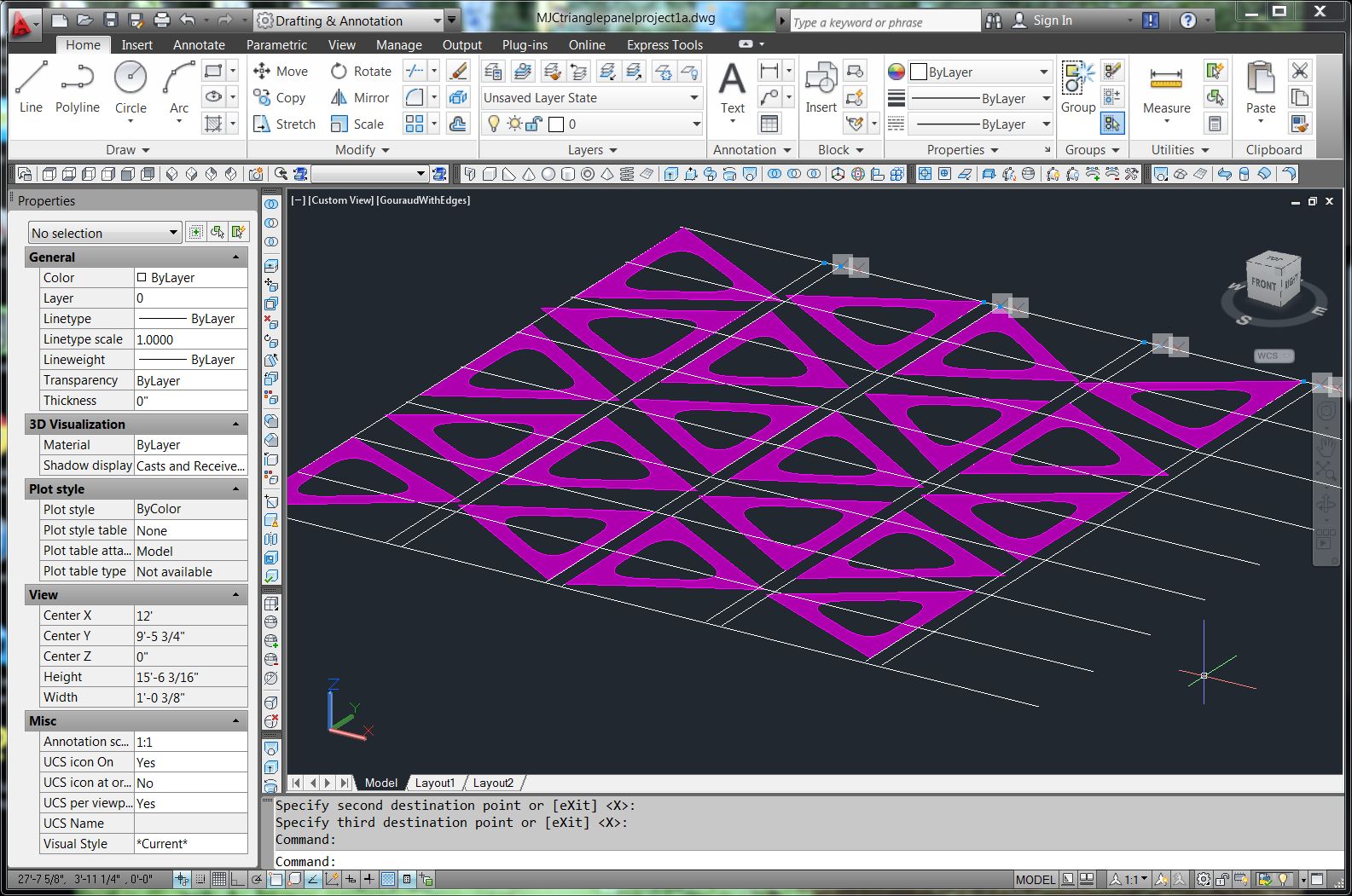
Use the 3DALIGN command to rotate the panels onto the cutting plane. I enforced a consistent convention of clicking the top corner first, the bottom corner second, and then finally the third point. In placing the face, pick the points in the same order. This is important to keep the faces oriented the same way as the originals. (Figure 7, 8).
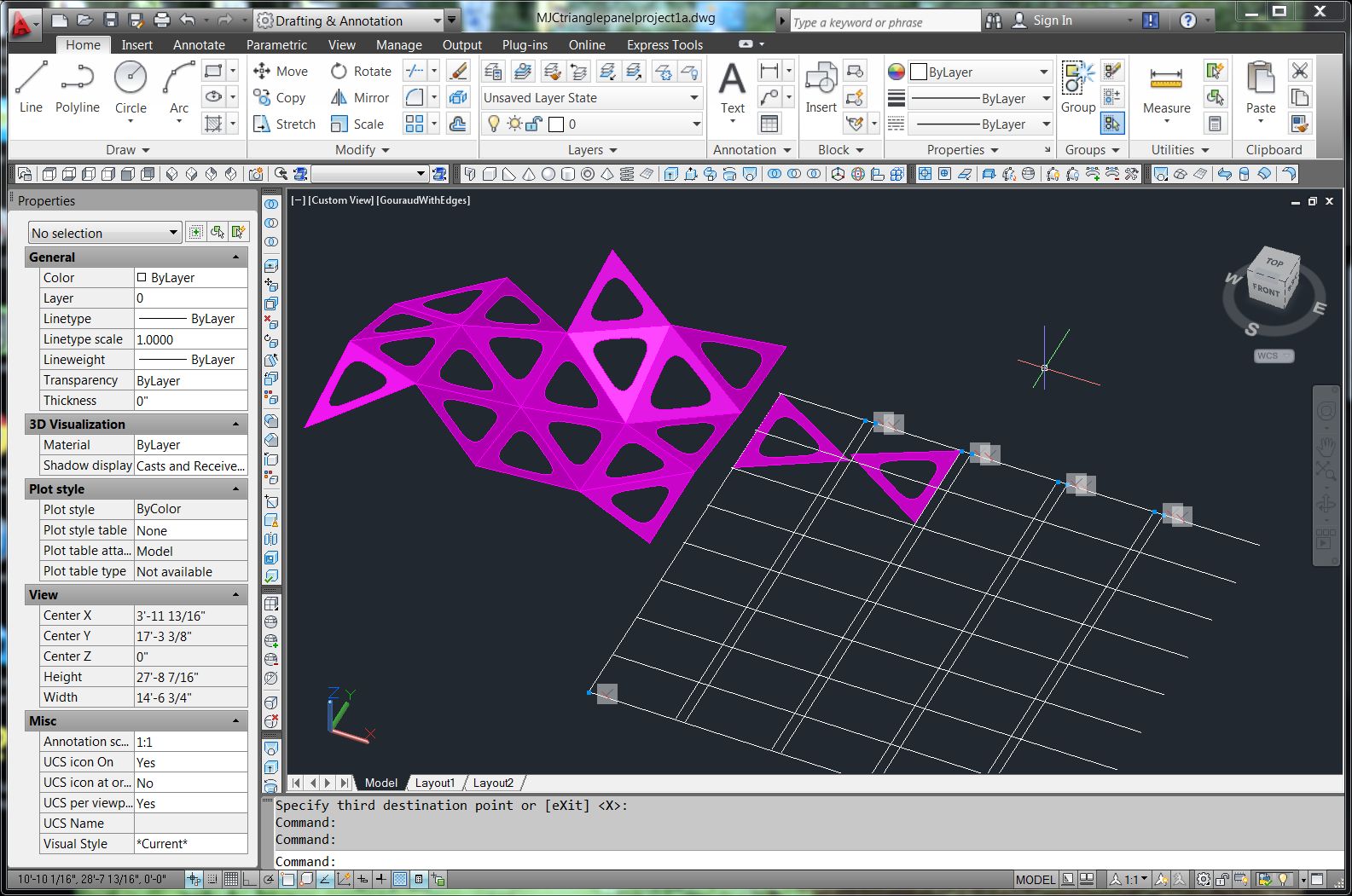
Figure 7.

Figure 8.


The panels must be scaled, labeled, and fit onto the cutting sheets. For our lab’s laser cutters, I will scale them to 1:12. I selected all of the panels and used the SCALE command (Figure 9).
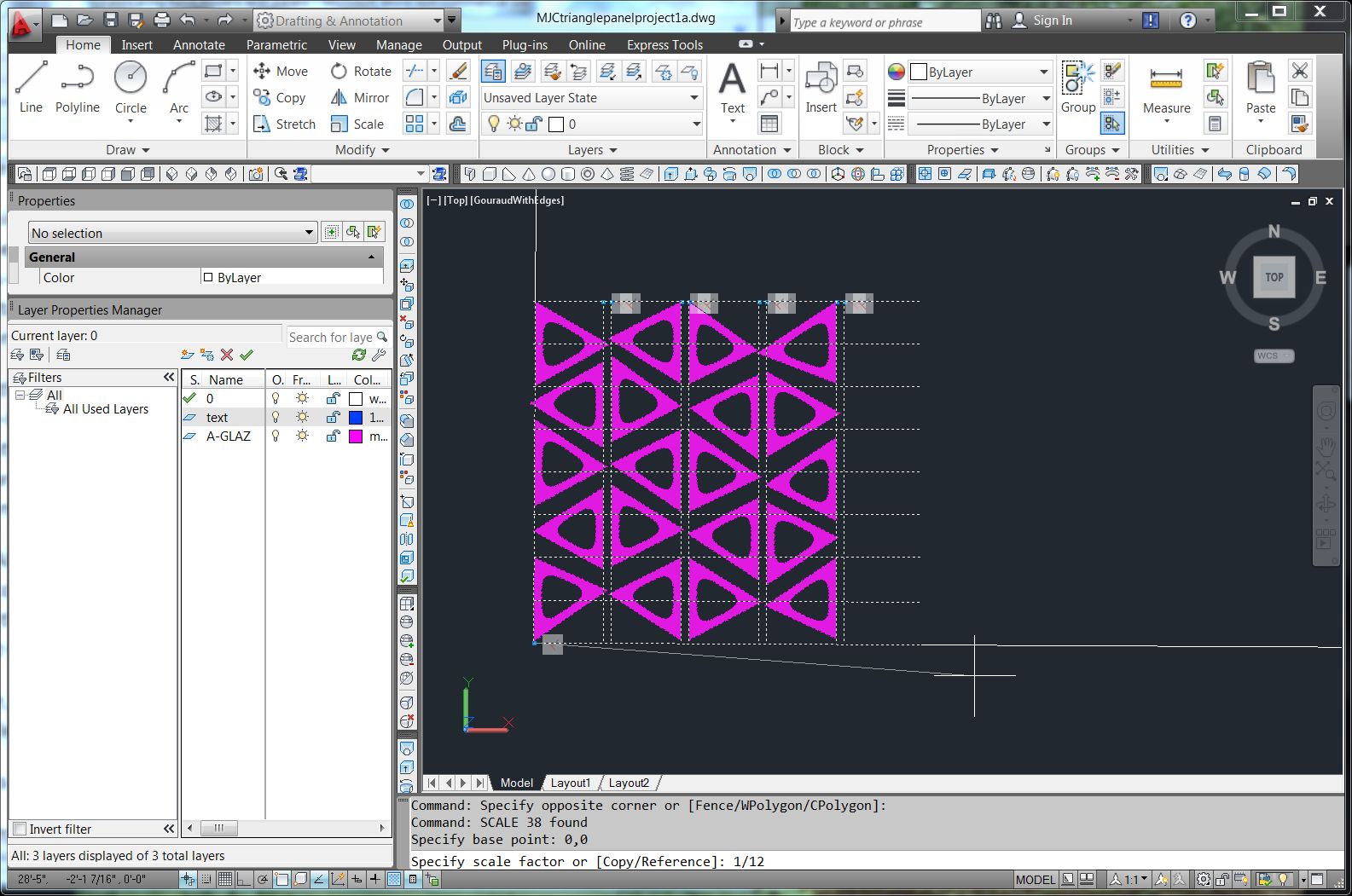
Figure 9.


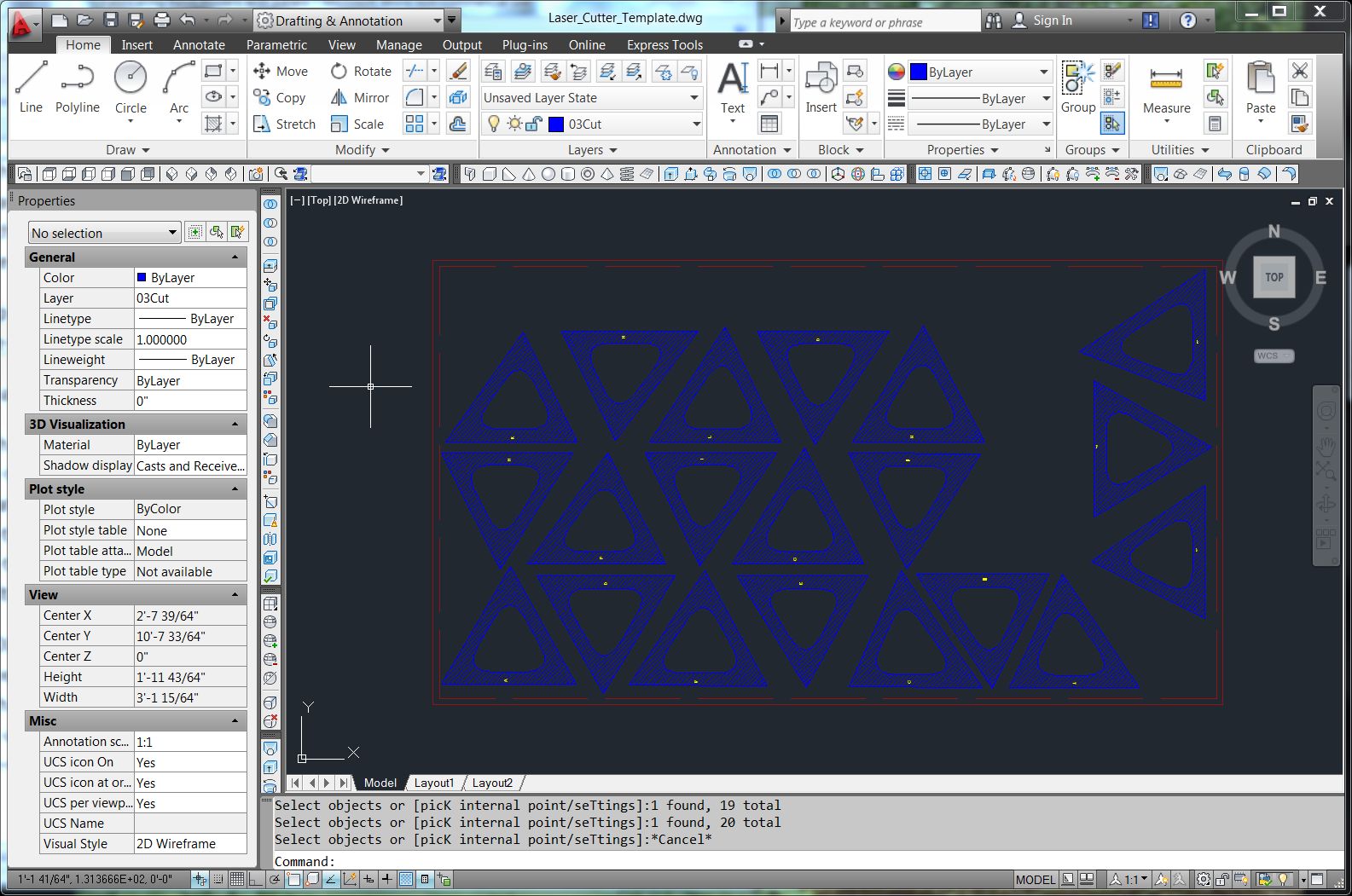
Our shop staff have created a template for the laser cutter showing the bed size of the machine and assigning layers to the choices of CUT or SCORE (etch). It is simple to open the template and then copy the triangular faces and paste them into the template. The red lines designate the border and margins of the cutting table (Figure 10).
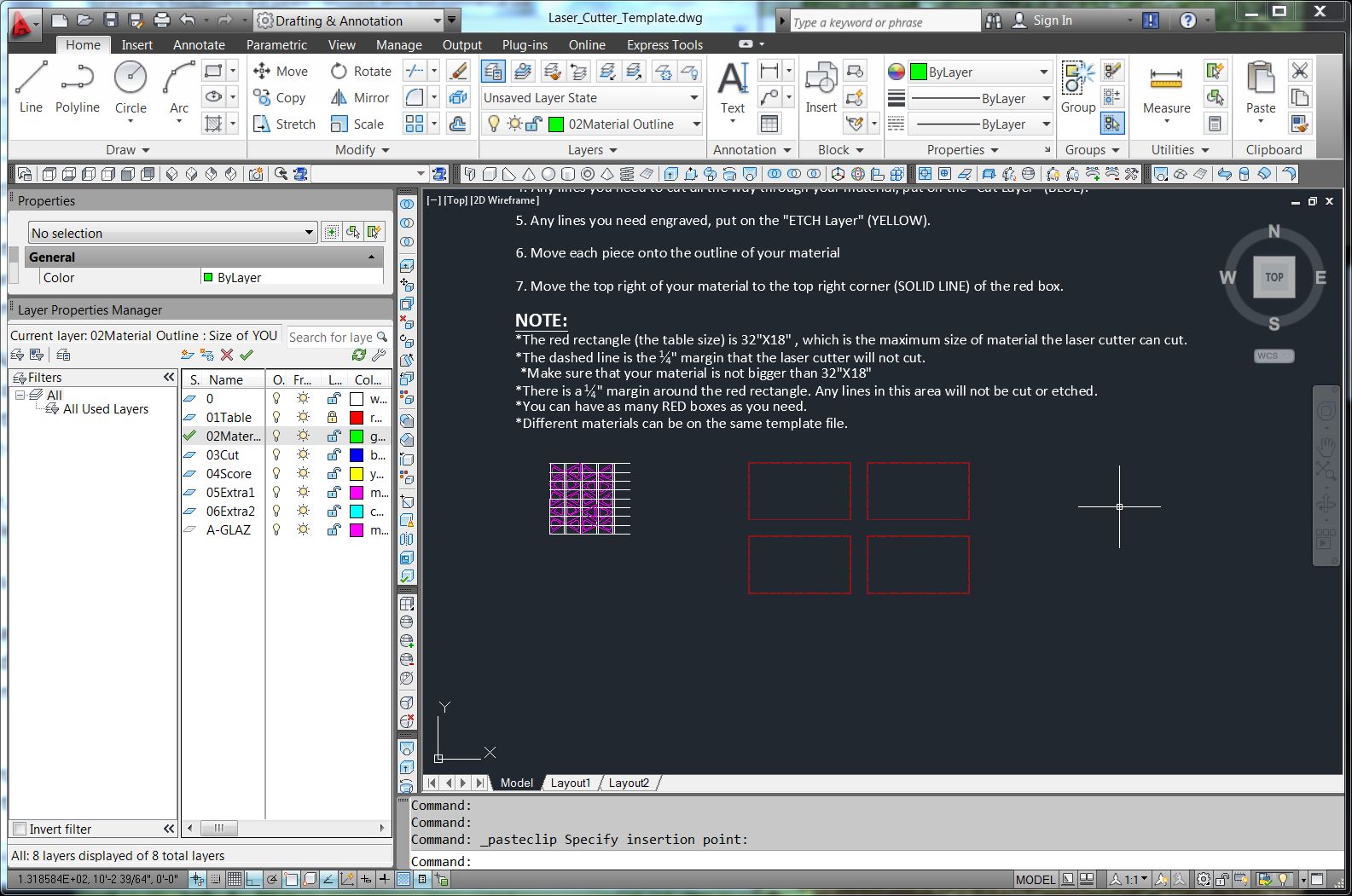
Figure 10.


Labeling the panels

The next step is to label all the panels. Simply use the TEXT tool (single line text) to add a letter to each panel. I put the text on a separate layer (Figure 11). 
I arranged the triangles on the cutting bed template, being careful to keep them away from the margins. Care must be taken to retain the labels. MOVE and ROTATE both can accept the Previous selection set, making it easy to manipulate the correct panels. I deleted the grid lines because they are no longer needed.
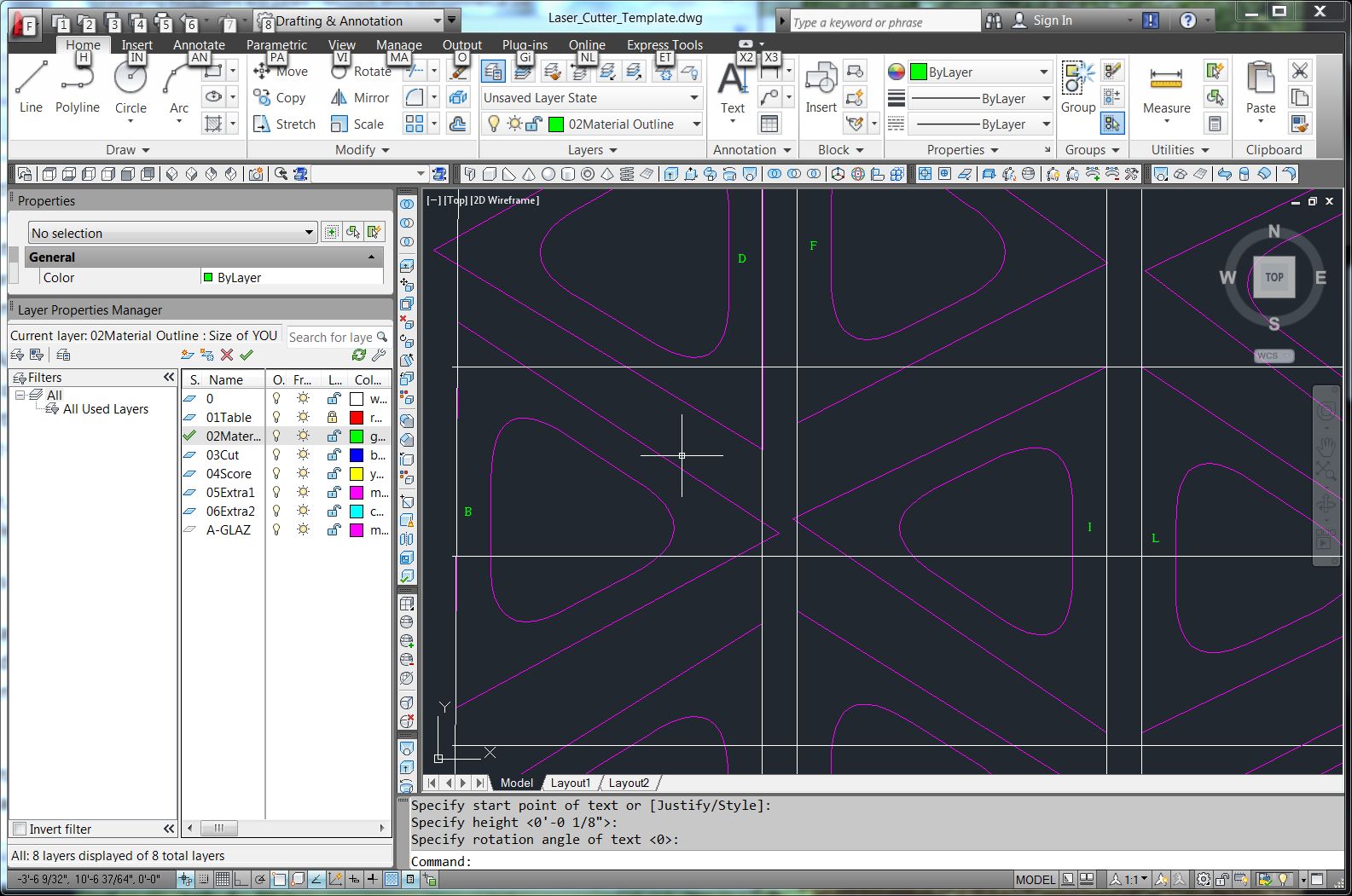
Figure 11.

Figure 12.

The last step is to move the elements to the correct layers for the laser cutter. The panels were moved to the CUT layer and the text was moved to the SCORE layer.

That is all that is needed in our shop.

A better model with tolearances

This model has some flaws. The panels are at the mathematically exact size, not allowing for the material thickness that will cause a clash with an adjacent panel. This does not matter if the panels are cut from a very thin material, but if the material is more thick, they should be undersized to allow for a tolerance. The best way to account for the tolerance is to model it in Revit. However, it can be corrected in AutoCAD, although the process is a bit clumsy.
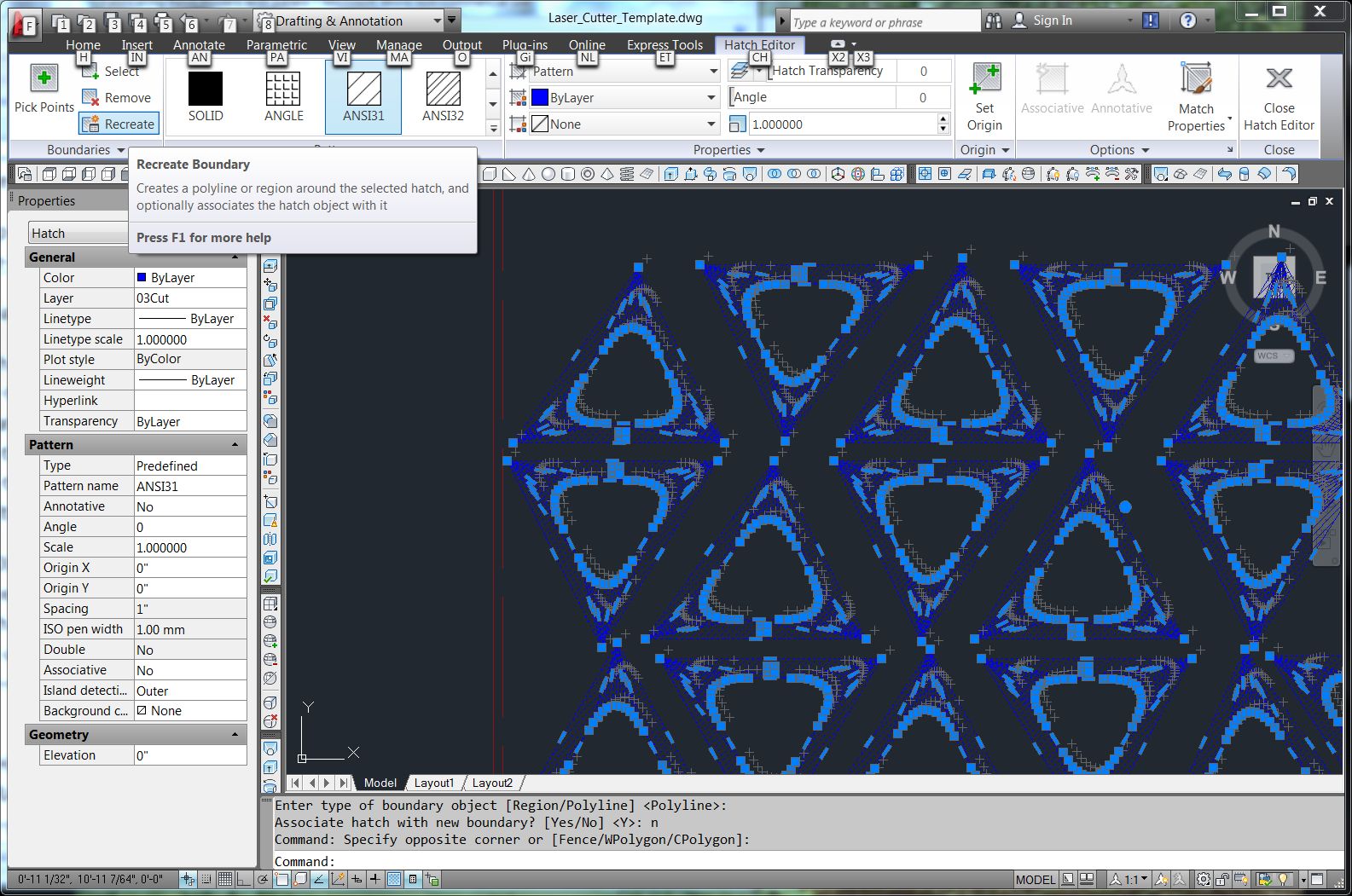
First, the POLYFACE MESH objects must be converted into PLINES. I can find no direct way to convert them; the EXPLODE command converts a POLYFACE MESH to a 3D FACE, and that object cannot be exploded further. A search on the Web reveals a clever work around of converting the POLYFACE MESH to a BHATCH, deleting the MESH while retaining the BHATCH, and then regenerating the BHATCH boundary as a PLINE.
Using the BHATCH command, I picked each POLYFACE MESH to add a hatch (Figure 12). Then using the ERASE command, I picked each POLYFACE MESH and erased it, leaving the hatch (Figure 13). Then pick the hatch and use the RECREATE command to produce a new POLYLINE around each panel (Figure 14). Next, delete the hatch elements.
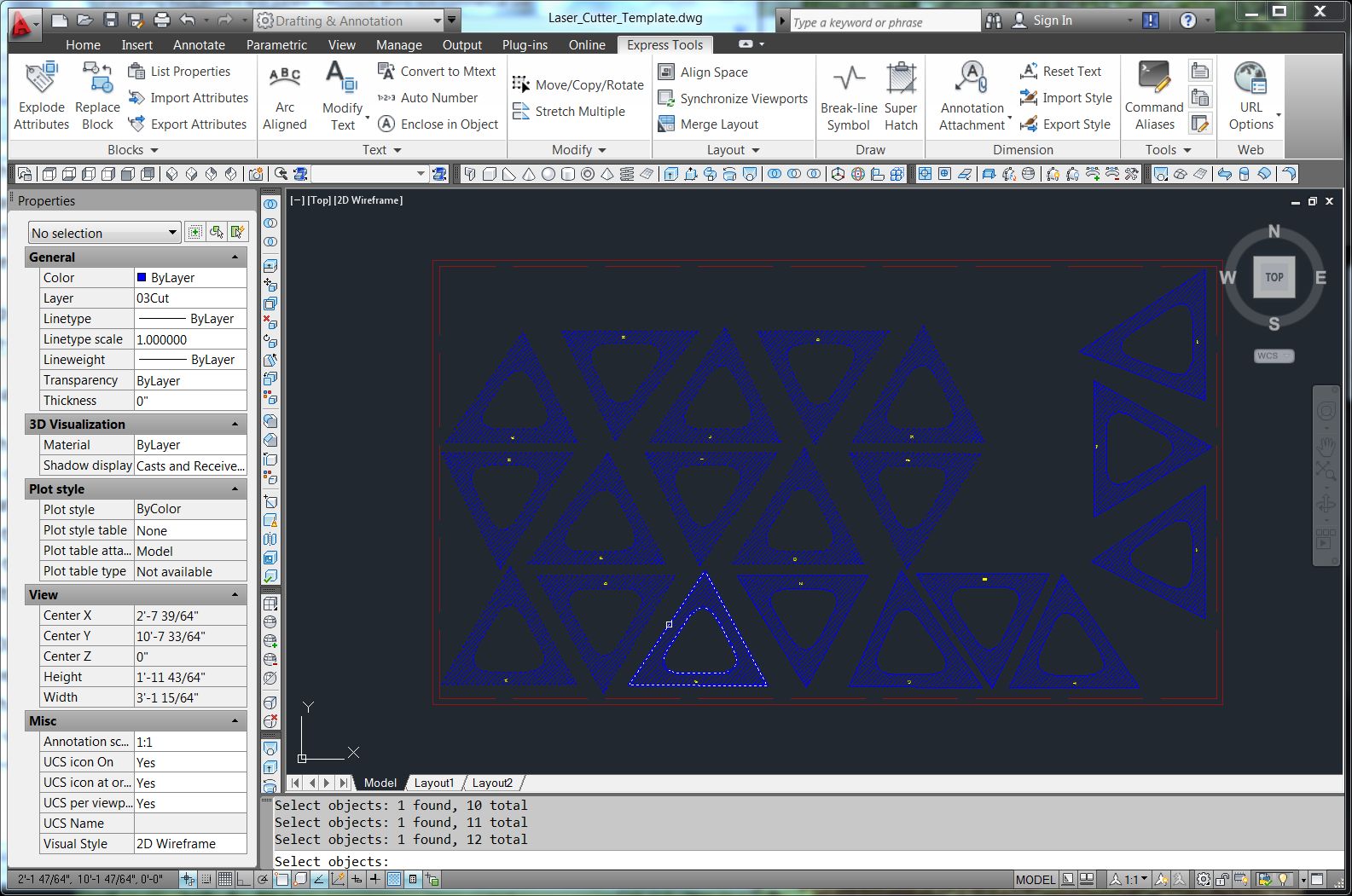
Figure 13.


Figure 14.


This creates too many polylines, as it recreates the boundaries of all of the MESH objects (Figure 15, 16). However, it is not too difficult to erase the extra line segments using a crossing selection. Beware of the rectangles around the text elements generated by the hatch command. These are on the CUT layer and, if not erase, will leave holes in each panel (Figure 17).
Figure 15.


Figure 16.


Figure 17. 

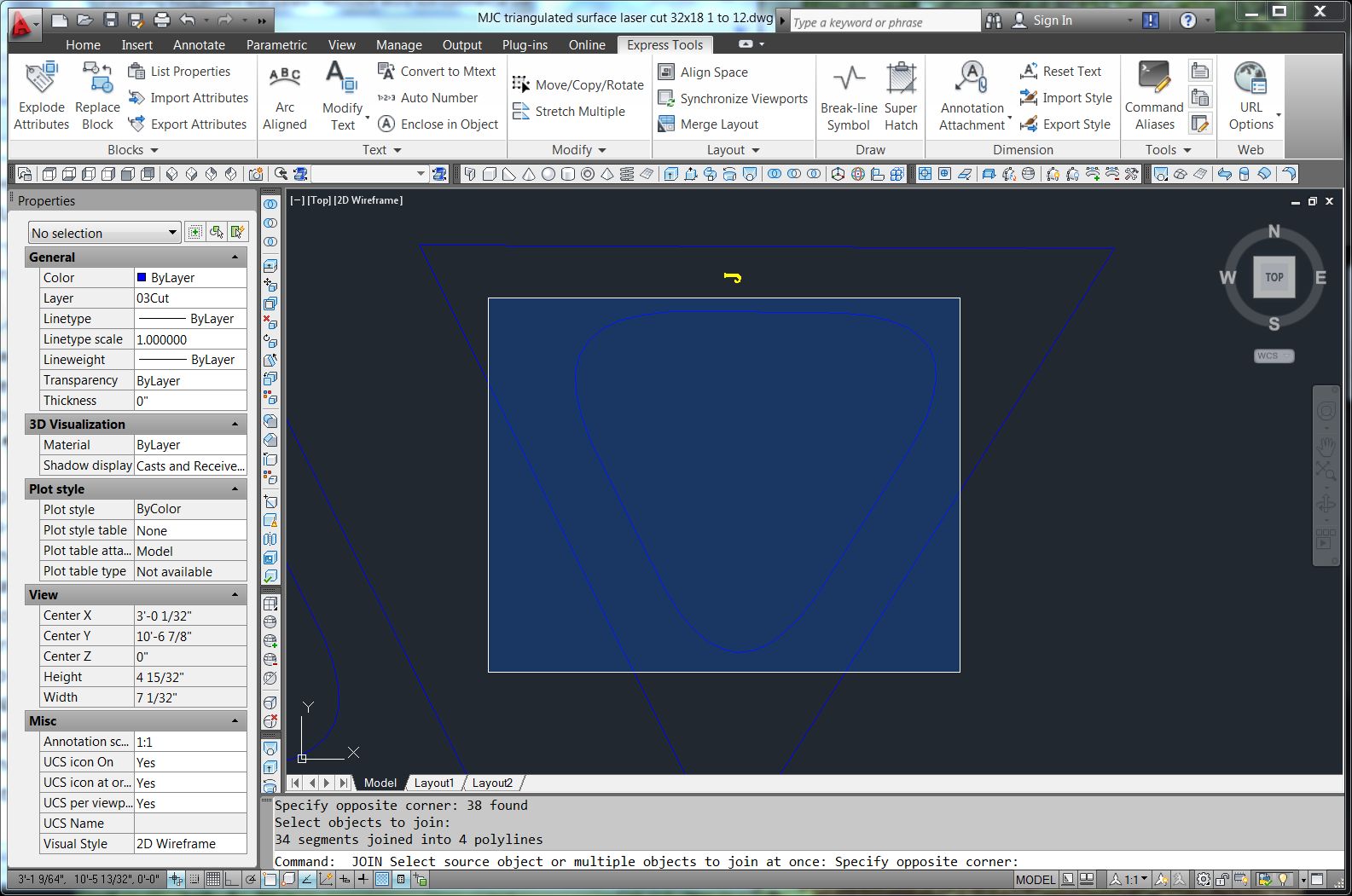
The last step is to create an assembly tolerance by making the panels slightly smaller than as designed. This creates a tolerance that aids in assembly. The idea behind this model is to tape the panels together. The tape will cover up the gap between panels and enable them to rotate in space to the correct position. I used the JOIN command to collect the three sides of each triangle into a single PLINE, and then the OFFSET command to nudge the triangles inward. I used a 1/32” offset. ERASE the original triangles (Figure 18).
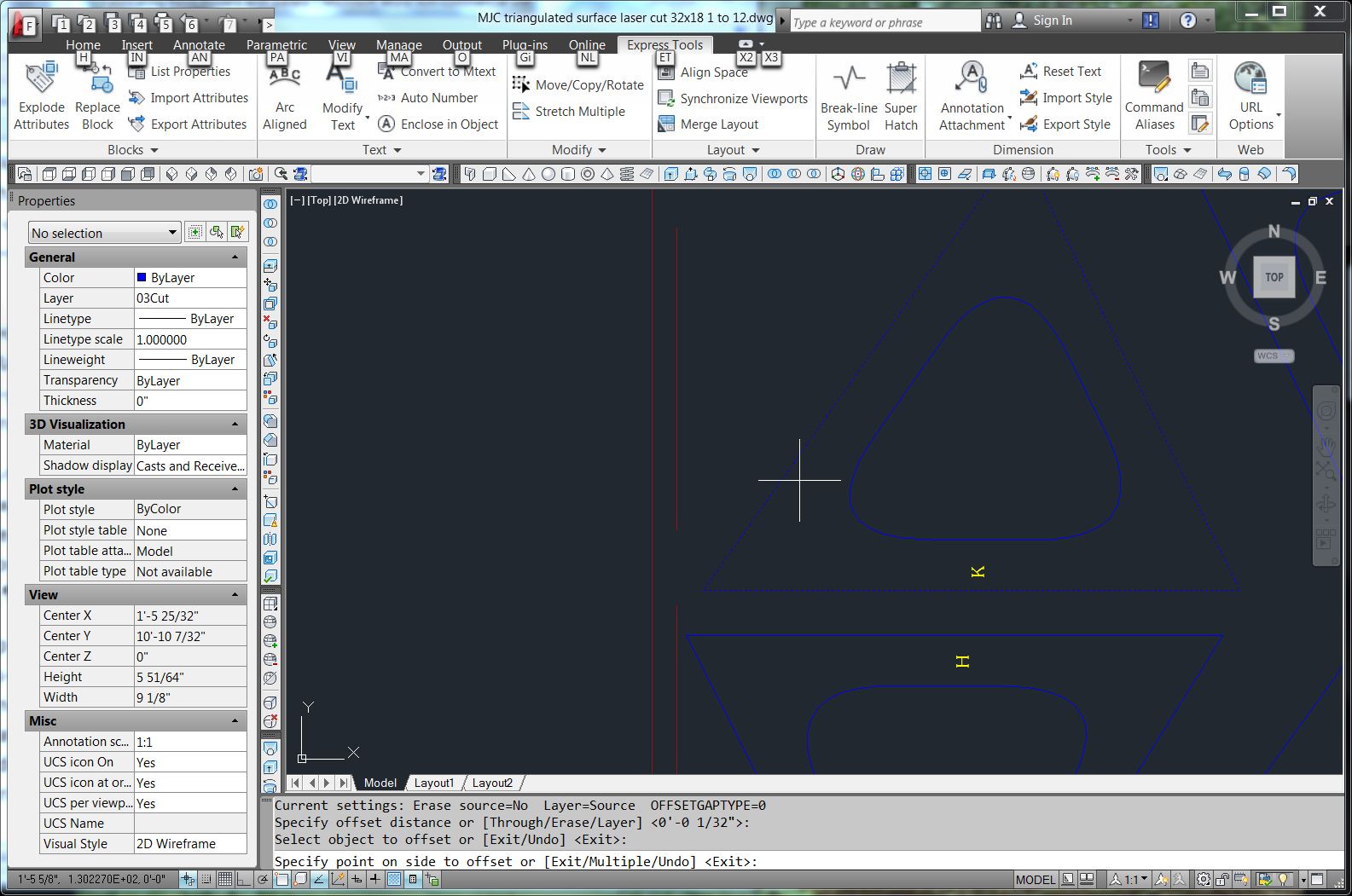
Figure 18. 
Figure 19.

It is a good idea to JOIN the boundaries of the holes too, as the laser cutter is likely to prefer a single PLINE rather than multiple PLINES. Oddly, the JOIN command will not join all of the segments of a hole in one operation, but if issued twice will join some of the segments and then the rest of them. Careful use of a WINDOW selection (upper left to bottom right window) can generally select all of the segments defining a hole at once. (Figure 19)

This is now a very good model that should present no difficulties in cutting or assembly.

Friday, November 23, 2012

Screen captures and movie editing

There are many reasons to want to capture the interaction on a computer screen. My motive is usually one of the following:
  1. Show a colleague how to use commands in some software system
  2. Demonstrate new software
  3. Create a user manual for new software
There are commercial packages for doing this, but I have used Windows Media Encoder for several years. It works well and it is free. It can be downloaded from:

It appears that the software is being replaced by Windows Expression Encoder, but I have not yet used that software. It can be downloaded for free at:

One can also purchase a program such as Camtasia. 

The challenge of any of these is the large number of settings and options. You must specify the source (which could be the screen or an external device). This post is focused on capturing the screen, in which case one must specify whether you want the entire screen, a window, or a region of the screen. Having set the input, one must also set the output, which is determined by how you expect to distribute your video. Since video files can be huge, you must be aware of the expected file size and the video coding and decoding (codec). If you are distributing by email, you must use high compression and small size to produce a small file. If you are downloading from the Web, you may also be restricted on file size. If you are streaming, then file size may not be an issue. If you ultimately want to create a DVD or VHS tape, you may wish to capture to that size and compression. 

Here are some settings that have worked well for me in making informal videos for demonstrating software techniques distributed as downloads and played back on screen. First is the About dialog so you can see exactly what version I am using.
Figure 1: Windows Media Encoder.

The first step is to set the Source. In Figure 2 you can see that I have set it for Video Screen Capture. From the Configure button, I set it to capture a region of the screen. One can also set it capture a particular software window, such as the Revit Window. 
Figure 2. Source settings.
Figure 3. Window selection method. 
The output setting permits one to save the capture to a designated file. Beware that you may have to change the filename for each segment that you create. 

The Compression settings are complicated, but these setting shave worked for me. The DVD quality seems adequate for demonstrations, although I am sure there are higher quality settings. A concern is that I do not know who is going to watch my video so I have chosen a format that should be widely supported. 

Figure 4. Compression settings.

Figure 5. Compression settings. 

Cropping and resizing can be useful, but you can ignore this Property and the others.


Figure 6. Video Size properties. 
To start capturing the video, just click the button for Start Encoding. To stop the capture, go to the task bar and open the dialog to stop. 

I use another free software package for editing videos. You can download Microsoft Windows Live Movie Maker  from 

Figure 7. Windows Movie Maker.
With this software, you can combine multiple clips of screen capture, live video captures, still images, audio and other components into a movie. It uses a simple timeline or film editing view to insert, splice, cut, and rearrange clips.  (Any screen demonstration is better with a little Phillip Glass accompaniment. ;-)

It is easy to record a voice overlay using the Sound Recorder that is available as a standard Windows Accessory. Of course you will need a microphone. 

Note that may programs can produce video that can be used in Movie Maker. You can add animation and transitions to a PowerPoint slideshow, dub a voice over it, and then save the whole thing as a video. Then you can use that as a segment in Movie Maker in combination with some screen captures. A few head shots or live action shots with a video camera or camera phone adds some humanity to it. Even add some Xtra Normal cartoons. The process is fun (at least at first) and results in carefully controlled presentations that can get your point across very effectively.